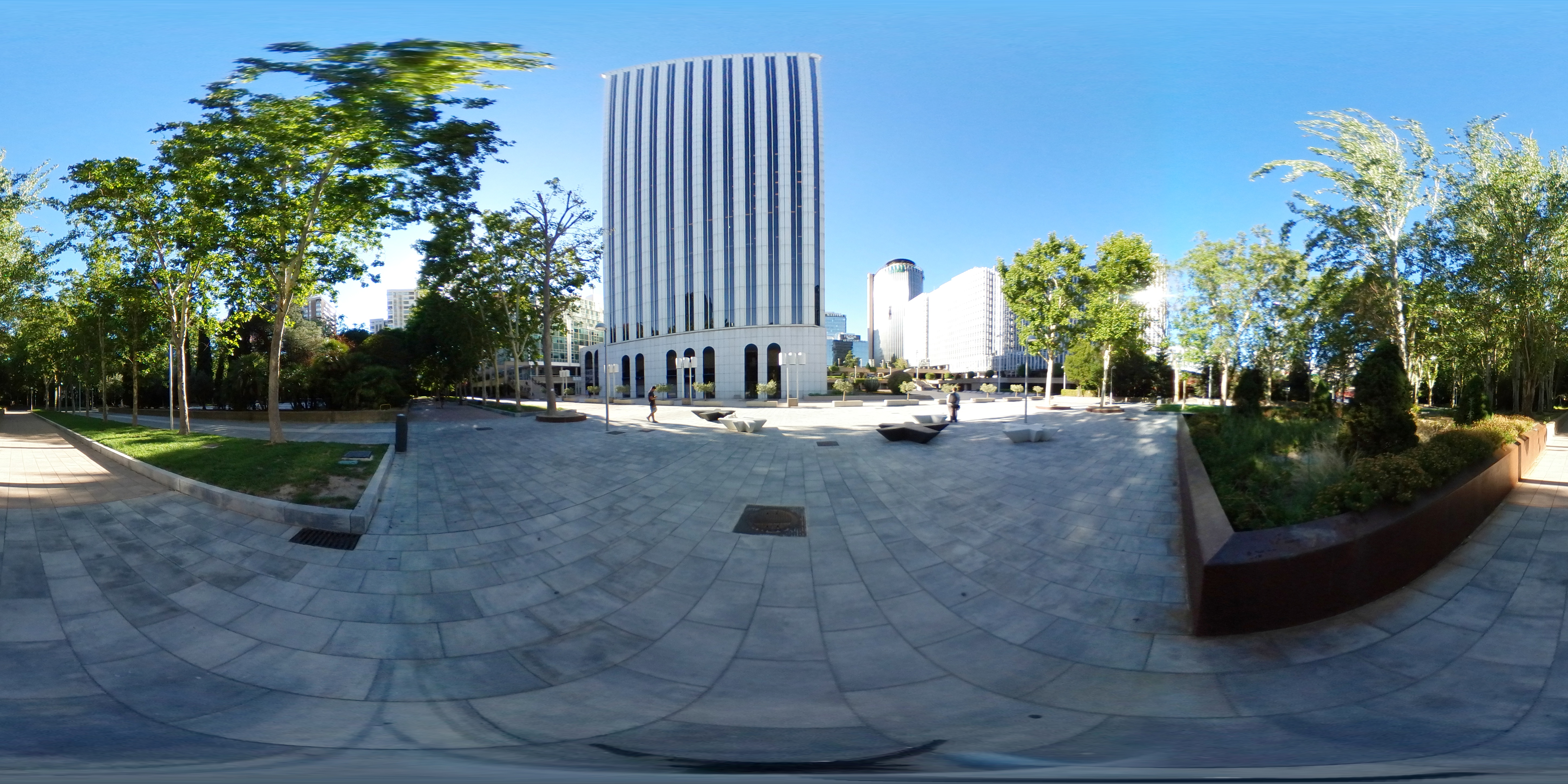
EDIT MODE: Click on the 360° image to place hotspot
🎵 Scene Audio: ON
0:00
0:00
Instructions
🛠️ Edit Mode: 1. 📝 Select hotspot type (Text/Audio/Portal) 2. 🎯
Click "Add Hotspot" to start placing 3. 📍 Click on 360° image to position 4. ✏️
Use Edit (✏️) to modify content 5. ✎ Use Move (✎) to reposition 6. 🧭 Uncheck
"Edit Mode" to navigate
💡 Pro Tip: First scene will be the starting point on export!
Hotspot Editor
Visual Customization
Opens style editor with live preview
Mode
🛠️ Edit Mode: ON
Click to switch to Navigation Mode
Global Scene Sound
🔇 Scene Audio: OFF
Click to enable ambient sound for this scene
Enter a direct URL to an audio file for ambient Scene sound
Volume level (0.0 - 1.0)
▶Ground/Texture
🌍 Ground: OFF
Click to add ground plane with textures
▶✅ Essential Textures
▶🎯 Optional Textures (Enhance Realism)
▶📐 Size & Texture Repeat
How many times the texture repeats across the ground
Scene Management
No starting point set
Hotspot Type
▼
📝 Text Popup Only
🔊 Audio Only
🎵📝 Text + Audio
🚪 Navigation Portal
🔗 Weblink Portal
🖼️ Image
🎨 3D Model
Hotspot Properties
Enter a direct URL to an audio file (mp3, wav, ogg)
Provide an image file or URL (png, jpg, gif). One is required.
Upload a GLB/GLTF 3D model file
Adjust the size of the 3D model
Rotate the model (0-360 degrees)
Adjust vertical position (negative = lower, positive = higher)
Scales the image uniformly. Aspect ratio preserved from original image.
Provide a full URL starting with http:// or https://